

You did the work. You sent the invoice. And now you’re writing a third polite email asking where the money is. It’s awkward, it eats your evenings, and it’s always the first thing to slip when you get busy — which is exactly why learning how to automate invoice payment reminders is worth it.
Here’s the good news: most of this can be automated, and the tool you need may already be sitting in your invoicing software. I set up automatic payment reminders in QuickBooks Online, Xero, and Zoho Invoice, tested the exact message sequences, and documented the tone rules that keep clients happy while invoices get paid.
This is the full 5-step setup: pick the tool, switch on reminders, write the 4-message sequence, make paying effortless, and add escalation for chronic late payers. About an hour of setup for invoices that chase themselves.
Why invoice chasing is the job nobody does
82–87% of businesses report dealing with delayed payments — so if your clients pay late, you’re not doing anything wrong. But there’s a second number: businesses using automated, multi-stage reminder sequences get paid faster with less friction. The gap between “sent the invoice” and “got paid” is where small businesses quietly bleed.
The manual approach fails for a simple reason: chasing is unpleasant, so it gets postponed. The invoice sits for a week, then two, then “I’ll do it Friday.” Automation removes the emotion entirely. The system sends the reminder, not you — and clients respond to systems without the relationship baggage.
How to automate invoice payment reminders: the 5-step setup
(Pricing changes often — treat these as ballparks and check current plans before deciding.)
Step 1: Pick your invoicing tool
You probably don’t need new software. QuickBooks Online, Xero, FreshBooks, Wave, and Zoho Invoice all have automatic reminders built in — if you’re paying for one of them, you already own this feature. If you’re still invoicing from a spreadsheet, Zoho Invoice’s free plan includes invoicing, payment collection, and automated payment reminders at zero cost.
If you don’t invoice yet at all — or you want the invoice itself drafted for you — I compared AI invoice generators for freelancers that turn a plain sentence into a send-ready invoice. Pair one of those with the reminder setup below and the whole money-in cycle runs itself.
Step 2: Turn on automatic reminders
In QuickBooks Online, the setup takes about twenty minutes: go to Settings → Account and Settings → Sales, open the Reminders section, and toggle Automatic invoice reminders on. You can schedule up to three reminders, timed anywhere up to 90 days before or after the due date, with customizable messages for each. QuickBooks also has an automatic late fee feature you can switch on.
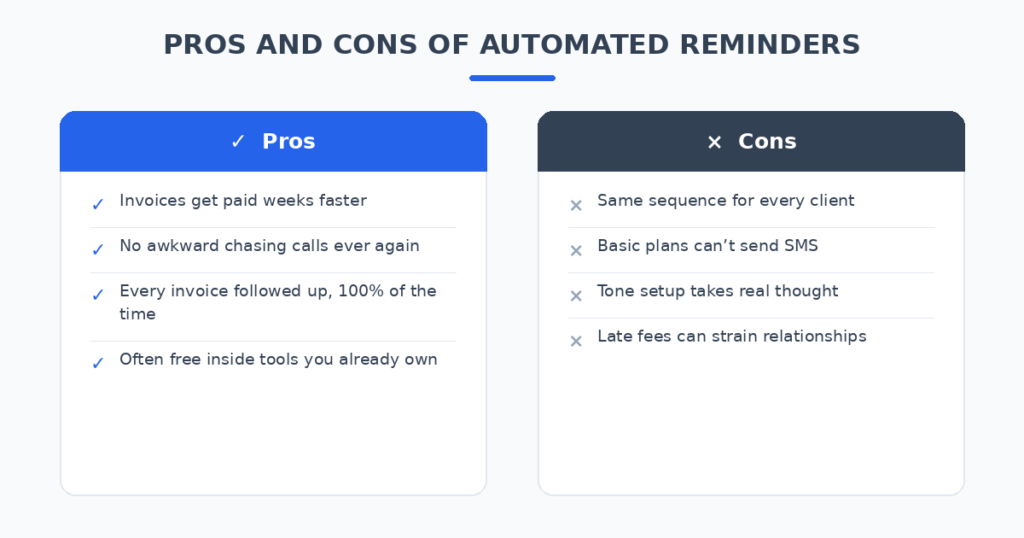
Two limits to know: reminders are not retroactive — they only apply to invoices emailed after you switch the setting on — and the same schedule goes to every customer. Xero allows up to five reminders per organisation with repeating invoice schedules. Neither sends SMS natively; for that, you need a dedicated chasing tool (see Step 5).
Step 3: Write the 4-message sequence
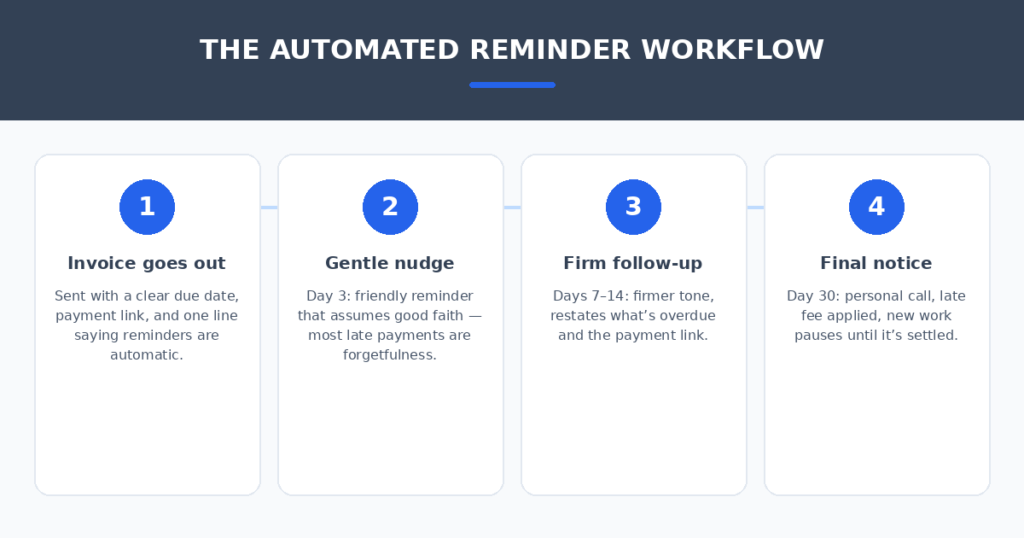
Automation with bad copy is just faster annoyance. The sequence that works: gentle at day 3, firmer at day 7, overdue at day 14, final at day 30. Keep every message to three or four sentences, and always include the invoice number, the amount, the original due date, and the payment link.
- Day 3 — the nudge: “Hi [Name], just a friendly heads-up that invoice #1042 for $1,200 was due Tuesday. Here’s the payment link if it slipped your mind: [link]. Thanks!”
- Day 7 — the firmer note: “Hi [Name], following up on invoice #1042 ($1,200, due [date]) which is now a week overdue. You can pay here: [link]. Let me know if there’s an issue I should know about.”
- Day 14 — overdue: “Hi [Name], invoice #1042 is now two weeks past due. Please arrange payment this week: [link]. If there’s a problem with the invoice itself, tell me now and we’ll sort it.”
- Day 30 — the final one: “Hi [Name], invoice #1042 remains unpaid after 30 days. I’ll need to pause new work until this is settled, and a late fee of [X]% now applies per our terms. Please call me today so we can resolve this.”
Step 4: Make paying effortless
A reminder without a one-click payment link is a lecture, not a solution. Every invoice and every reminder must include a payment link — card, ACH/bank transfer, or whatever your clients actually use. Making someone find their checkbook turns a five-minute task into a three-week delay.
Your options: QuickBooks Payments, Xero, and FreshBooks all have built-in payment processing. Stripe and GoCardless handle card and bank payments with clean links you can drop into any invoice. Yes, processing takes a small percentage — compare it against the cost of a 30-day late payment and it stops looking expensive.
Step 5: Add escalation for chronic late payers
Built-in reminders handle 80% of late payments. The other 20% — the clients who’ve decided to pay late — need more. That’s where dedicated chasing tools come in: Chaser, Paidnice, and InvoiceSherpa add SMS reminders, per-customer schedules, statements, late fees, and payment plans on top of your accounting software.
They also pick up invoices that were already open when you connect — the gap QuickBooks and Xero leave behind. And set a business rule with teeth: new work pauses on invoices 30+ days overdue. Never make a threat in writing that you aren’t prepared to act on — if the final notice says new work stops, new work stops.
How to not annoy your clients
The tone rules matter as much as the software:
- Announce the automation in the first invoice. One line: “Our system sends payment reminders until the invoice clears.” The client isn’t being nagged by you; the system is doing what systems do. This single sentence preserves more relationships than any wording trick.
- Never apologize for asking to be paid. “Sorry to bother you about this” trains clients to treat your invoices as optional. You did the work; the invoice is a fact.
- Early messages assume good faith. Most late payments are forgetfulness, not malice. The day-3 nudge should sound like a helpful assistant, not collections.
- Keep it short and human. Three or four sentences, a real name in the greeting, and the payment link. Write like a person, not a collections agency.
The automated reminder workflow
Here’s the whole system on one page:
FAQ
How many reminders should I send before calling the client?
Three to four automated messages (days 3, 7, 14, 30) is the sweet spot. By day 30, automation has done its job — a personal call is the escalation. Most invoices clear by the second reminder; only chronic late payers ever see the final notice.
Can QuickBooks send SMS payment reminders?
Not natively. QuickBooks Online sends up to three automatic email reminders per invoice. For SMS reminders you need a dedicated tool like Chaser, Paidnice, or InvoiceSherpa connected to your accounting software.
Should I charge late fees on overdue invoices?
Late fees work best as prevention, not punishment: state the fee in your terms and the first invoice, and many clients pay on time just to avoid it. Apply them consistently — selective enforcement breeds resentment. Keep the fee reasonable and legal for your jurisdiction.
What if a good client is just slow, not refusing?
That’s the majority of late payments. Offer a payment plan before you escalate — two or three scheduled payments beats a standoff. Dedicated tools like Paidnice can manage payment plans automatically. Save the hard line for clients who ignore every message.
My verdict
Start where you are: if you use QuickBooks Online or Xero, turn on the built-in reminders today — it’s twenty minutes and costs nothing extra. Write the 4-message sequence once, add payment links to every invoice, and tell new clients upfront that reminders are automatic.
When built-in reminders stop being enough — SMS needed, chronic late payers, invoices already overdue — that’s when Chaser, Paidnice, or InvoiceSherpa earn their keep. Businesses that automate the full ladder routinely cut days-sales-outstanding dramatically; one cleaning company dropped from 22 days to 9 days in a single quarter.
Your invoices should chase themselves. Set the system up once, keep the tone human, and spend your evenings on literally anything else.
Related reading
Sources: Zoho Invoice