

Here’s a workweek math problem: four Zoom calls a day, 20 minutes of note-writing after each one, and half the action items still falling through the cracks. This is exactly how to automatically summarize zoom meetings with free AI tools — AI meeting summarizers listen, transcribe, and hand you a summary with action items before you’ve closed your laptop.
The best part is you don’t need to pay. I’ve tested every free route below myself: Zoom’s own built-in AI, auto-joining notetakers with genuinely free tiers, and a DIY method for recordings. Each method takes under five minutes to set up, and each ends with the same payoff — a written summary you didn’t have to write.
Before you start: the one rule that matters
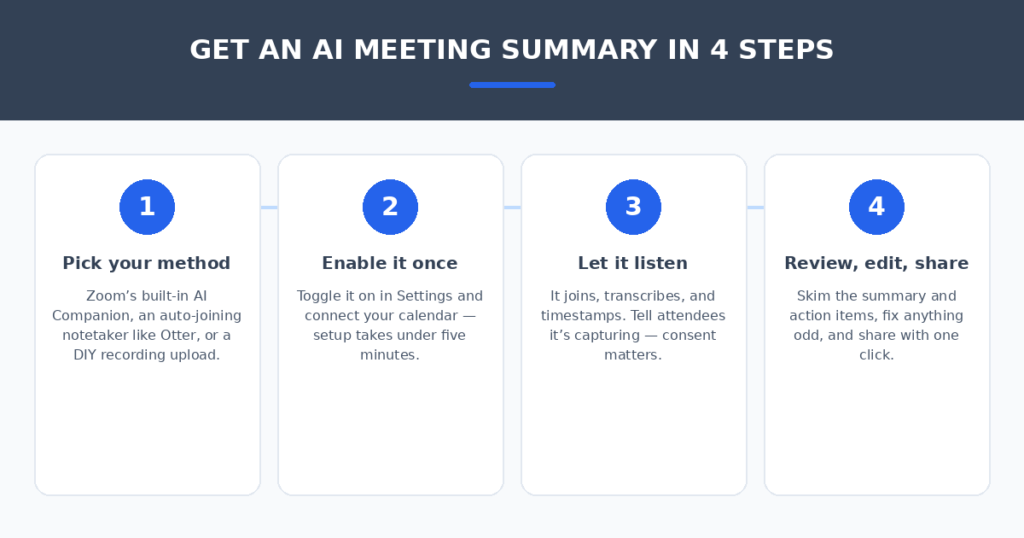
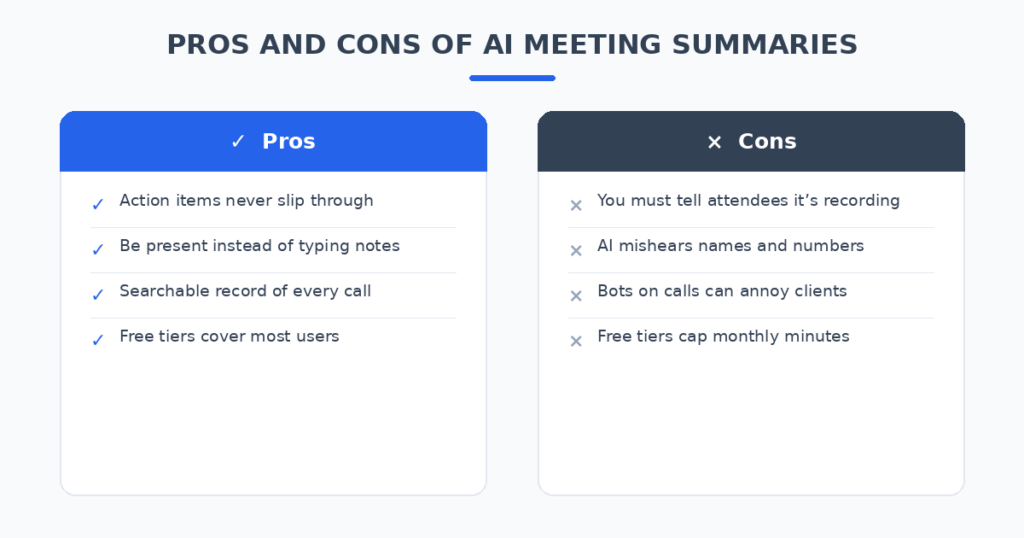
Tell people they’re being recorded. Every method here captures audio, and in many places recording a call without consent is illegal or against company policy. The fix is a single sentence at the start of the call: “Just a heads-up — I’m running an AI notetaker today so I can stay present. It’ll send us all a summary after.” In my experience, nobody minds; most people ask how to get one themselves.
Method 1: Zoom’s built-in AI Companion (easiest — no extra tool)
If you already use Zoom, start here. The AI Companion meeting summary is included with paid Zoom plans at no extra cost — no bot joins your call, no third-party account, and it can auto-start for every meeting you host.
Set it up (once)
- Open the Zoom desktop app and click the Settings (gear) icon.
- Click “View more settings” at the bottom — this opens the Zoom web portal.
- Click the AI Companion tab, then toggle on Meeting Summary with AI Companion.
- Check “Turn on meeting summary automatically when meetings start” so you never have to remember.
- Choose who receives the summary: just you, or you plus invited attendees in your organization.
Use it
Start or join your meeting as usual. Open the AI Companion panel in the toolbar to watch notes update live. After the call ends, Zoom emails you the summary — decisions, action items, and key topics — and stores it in the Previous Meetings tab of the app.
Best for: Teams already on Zoom who want zero extra accounts and zero bots on their calls.
Method 2: Otter.ai — the auto-joining notetaker (free 300 min/month)
Otter.ai’s OtterPilot joins your Zoom, Meet, or Teams meetings automatically from your calendar, transcribes in real time with speaker names, and sends a summary with action items — including who’s responsible for what — to all participants. The free tier gives you 300 minutes a month, enough for 10–15 standard meetings.
Set it up
- Create a free Otter.ai account — no credit card required.
- Connect your calendar (Google or Outlook) so OtterPilot sees your upcoming meetings.
- Toggle on auto-join so it shows up in your calls without you doing anything.
- Check your email after the meeting: full transcript, summary, and action items arrive within minutes.
Best for: People who jump between Zoom, Meet, and Teams and want summaries without remembering to press record.
Method 3: Fireflies.ai — the one with the best follow-up workflow
Fireflies.ai also joins as a notetaker, but its strength is what happens after the summary: it pushes action items to Slack, your CRM, or project tools automatically. If your Zoom calls end with “someone should update HubSpot,” Fireflies makes “someone” a bot that actually does it.
Set it up
- Sign up for the free Fireflies.ai tier.
- Connect your calendar and Zoom via one-click OAuth.
- Choose which meetings it joins — all of them, or only ones with specific invitees.
- Connect Slack or your CRM so action items land where work already happens.
Best for: Sales and project teams whose Zoom calls create tasks that live in Slack or a CRM.
Method 4: Fathom — free with no usage caps
Fathom’s standout feature is the price structure: unlimited meeting transcription, highlighting, and summarization for free. It works with Zoom, Teams, and Google Meet, produces timestamped summary outlines, and captures action items.
Set it up
- Install the free Fathom app or browser extension.
- Connect your calendar so it knows which meetings to join.
- Join your call — Fathom records and highlights key moments as they happen.
- Get your summary outline with timestamps right after the call, and click any line to jump to that moment.
Best for: Heavy meeting schedules where a monthly minute cap (like Otter’s 300) would run out.
Method 5: DIY from a recording — Whisper + ChatGPT or Claude
Sometimes the meeting already happened — you have a Zoom cloud recording or an MP4 and need a summary now. This method costs nothing and works on any audio:
- Get the recording’s audio: Zoom’s cloud recording has a transcript option; for MP4s, upload the file to Whisper (self-hosted or via API) to transcribe it.
- Copy the transcript and paste it into ChatGPT or Claude with this prompt: “Summarize this meeting transcript: list the key decisions, action items with owners, and open questions.”
- Read the output critically — verify names, numbers, and deadlines against the transcript, because the AI will confidently misspell all three.
- Save the summary wherever your team looks: a doc, a Slack thread, or the project board.
Best for: One-off summaries from existing recordings, or teams that can’t add bots to their calls.
Quick comparison
(Free tiers change often — check current limits before committing.)
| Method | Free tier | How it listens | Summary delivery | Best for |
|---|---|---|---|---|
| Zoom AI Companion | Included with Zoom plan | Built in — no bot | Email + in-app | Zoom-first teams |
| Otter.ai | 300 min/month | Auto-joins from calendar | Email + dashboard | Multi-platform users |
| Fireflies.ai | Free tier | Auto-joins from calendar | Dashboard + Slack/CRM | Sales and project teams |
| Fathom | Unlimited free | Joins your call | App + email | Heavy meeting loads |
| DIY Whisper + AI | Free | Uploaded recording | You write the prompt | Existing recordings |
How to automatically summarize Zoom meetings with free AI tools: the workflow that gets good summaries every time
The tool is only half of it. Four habits make the summaries dramatically better:
- Use real names on screen. “iPhone” and “Zoom User” produce useless speaker labels. A correct display name is the cheapest quality upgrade there is.
- Speak the action items out loud. Saying “So Sara, you’ll send the revised quote by Thursday?” turns a vague discussion into a named, dated task the AI can’t miss.
- Review before you share. Spend two minutes skimming the summary — AI mishears names and numbers most often, and those are exactly what matter.
- File it where work happens. A summary in your inbox helps you; a summary pasted into the project thread or CRM helps the whole team. Share it the same day.
Meetings are where work gets decided — the rest of your week still needs its own automation. If your Zoom calls end with client work to bill, I compared AI invoice generators for freelancers that turn a sentence into a paid invoice. And if your website could use an always-on answer machine, AI chatbots for small business websites handle questions at 11pm while you sleep.
FAQ
Is Zoom AI Companion really free?
It’s included with paid Zoom plans at no extra cost — there’s no separate AI Companion subscription. If you’re on a free Zoom plan, the built-in summarizer isn’t available, and an external free tool like Otter.ai or Fathom is the better route.
Do I have to tell people an AI is recording?
Yes — always. Beyond being polite, recording calls without consent is illegal in many places and against most company policies. One sentence at the start of the call covers it, and most platforms show a visible recording indicator anyway.
How accurate are the action items?
Surprisingly good for clearly stated tasks, shaky for vague ones. When someone says “I’ll send it Friday,” the AI captures it. When the meeting ends with “let’s figure that out later,” there’s nothing to capture. Stating tasks explicitly — the habit in the workflow section — is what makes accuracy high.
Can these tools summarize in other languages?
Yes, with caveats. tl;dv supports 30+ languages, and Zoom AI Companion and Otter.ai handle major languages well. Accuracy drops for accented speech and less-common languages — if that’s your situation, the DIY Whisper route often gives the best transcription quality for non-English audio.
What happens to my meeting data?
It lives on the tool’s servers, so check the policy before using anything sensitive. Zoom’s AI Companion processes within Zoom’s own infrastructure; third-party tools have their own retention policies. For confidential calls, the DIY route with a local Whisper install keeps everything on your machine.
My verdict
Start with Zoom’s AI Companion if your plan includes it — nothing to install, no bot crashing your calls, and it auto-starts. If you’re on a free Zoom plan or hop between platforms, Otter.ai’s 300 free minutes a month covers a normal week. Heavy meeting loads should look at Fathom’s unlimited free tier, teams that live in Slack or a CRM will love Fireflies.ai, and the DIY Whisper route handles every recording the other tools can’t touch.
Meeting notes are a solved problem. Set one of these up today, announce it once at the top of your next call, and never type “Action items:” at 9pm again.
Related reading
Sources: Zoom